
🖼️ Images
VJam's image feature is not just for placing a picture on screen. It turns photos and logos into audio-reactive visual layers that can be stacked, blended, locked, and mixed like presets.
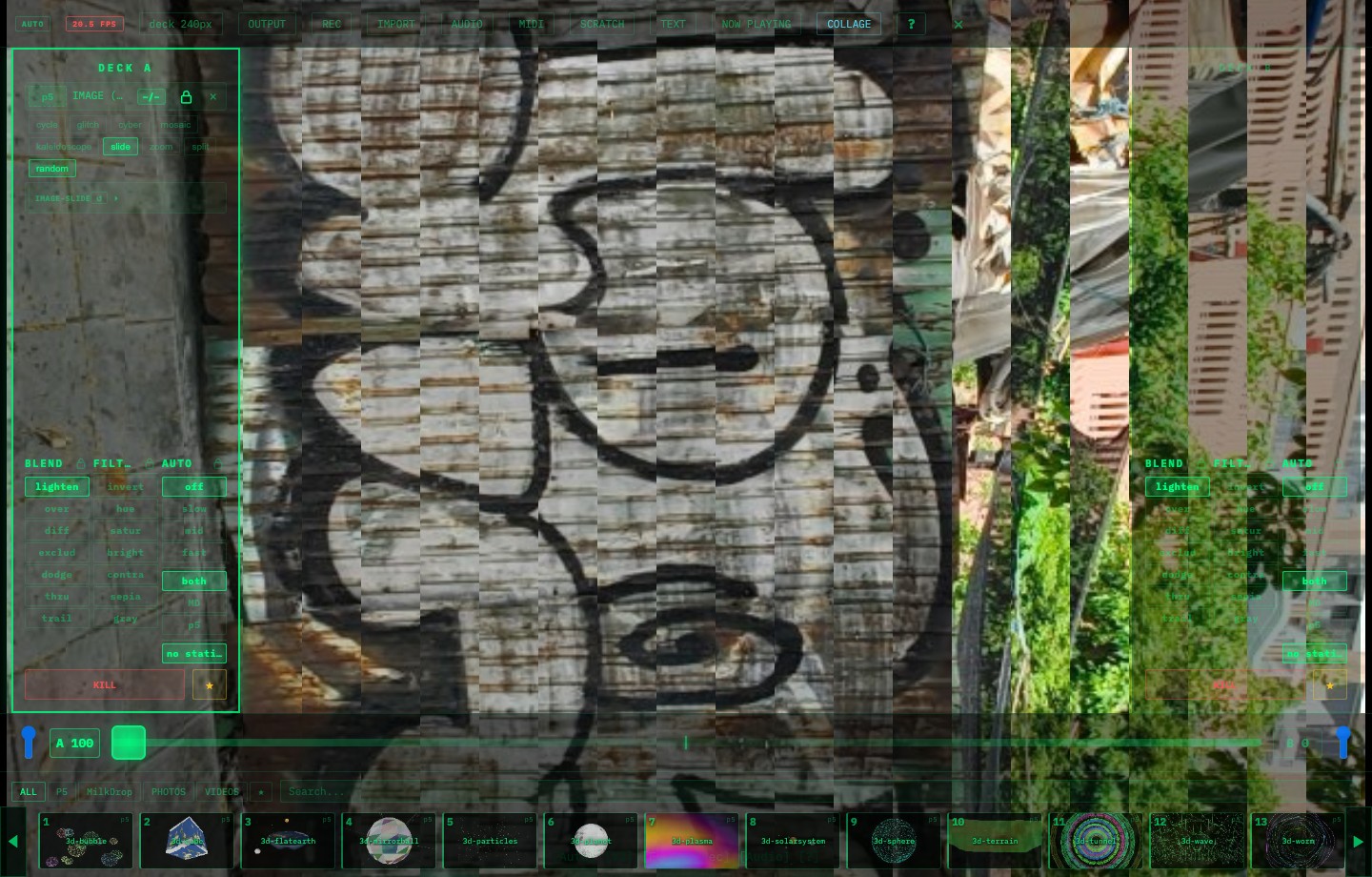
What Images Are Good For
| Use | How to use it |
|---|---|
| Persistent logo | Load a transparent PNG and keep it locked |
| Photo visuals | Use glitch / kaleidoscope / mosaic to turn photos into motion |
| Announcements | Show flyers, QR codes, event names, or title cards |
| Background texture | Layer photos under or over presets |
| Slides | Load multiple images and use cycle / slide |
Loading Images
- Open Cockpit with Space / pinch 🤏
- Press IMPORT
- Choose PNG / JPG / GIF files. Multiple files are OK
- VJam adds an
IMAGE (...)layer to the current deck
On mobile, use IMPORT instead of drag-and-drop. On desktop, dropping image files onto the app also works.
Image Styles
| Style | What it does | Good for |
|---|---|---|
cycle |
Rotates through loaded images | Logos, slides, announcements |
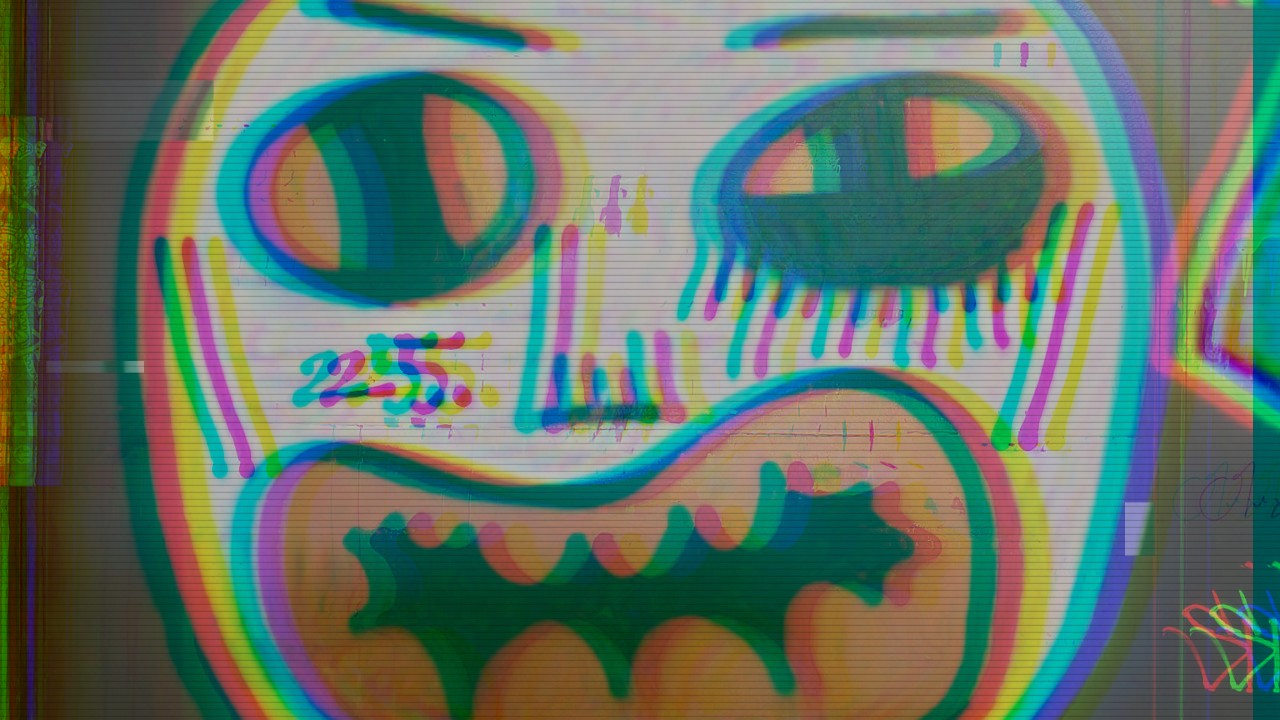
glitch |
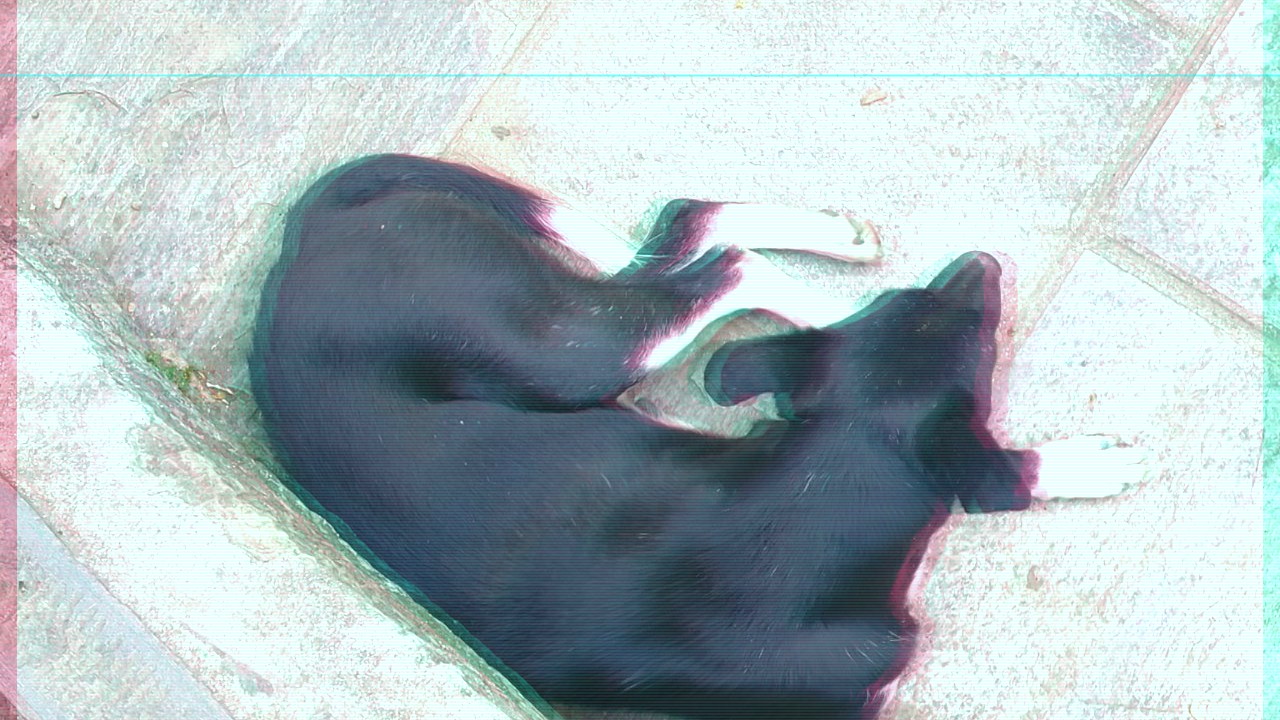
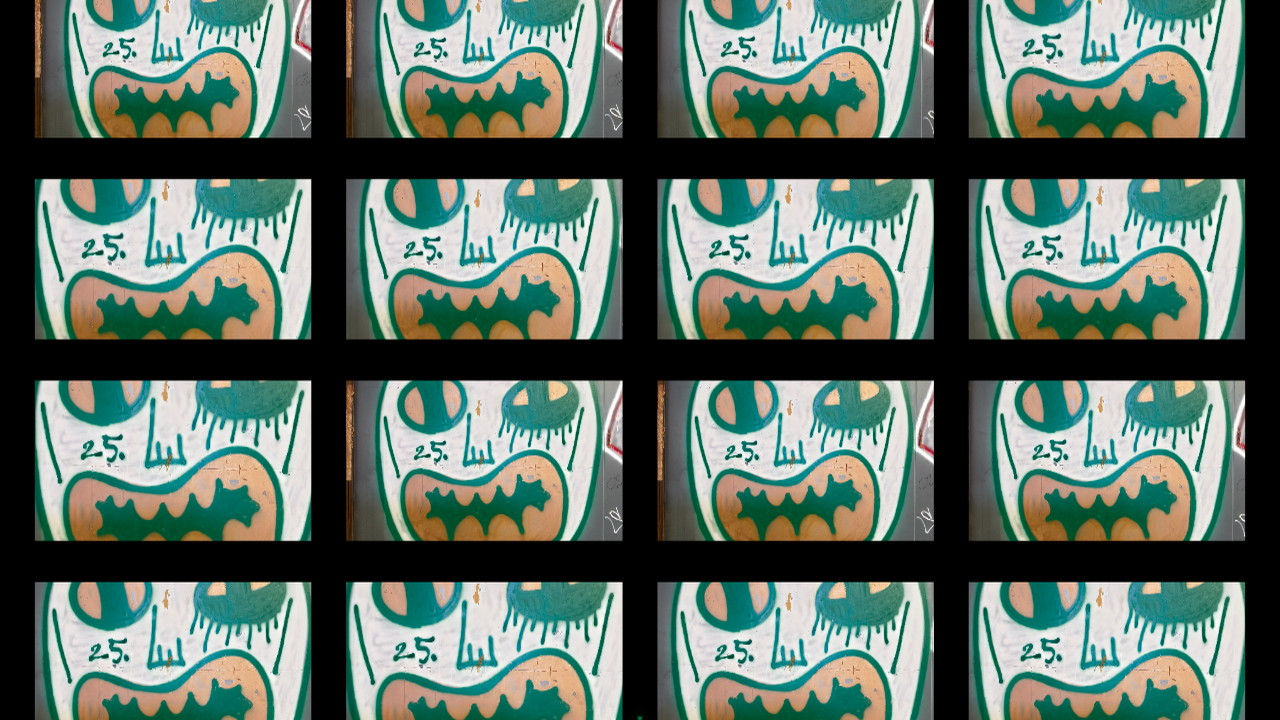
Breaks the image with noise and offsets | Photos, street images, portraits |
cyber |
Adds neon / sci-fi styling | Logos, flyers, artificial surfaces |
mosaic |
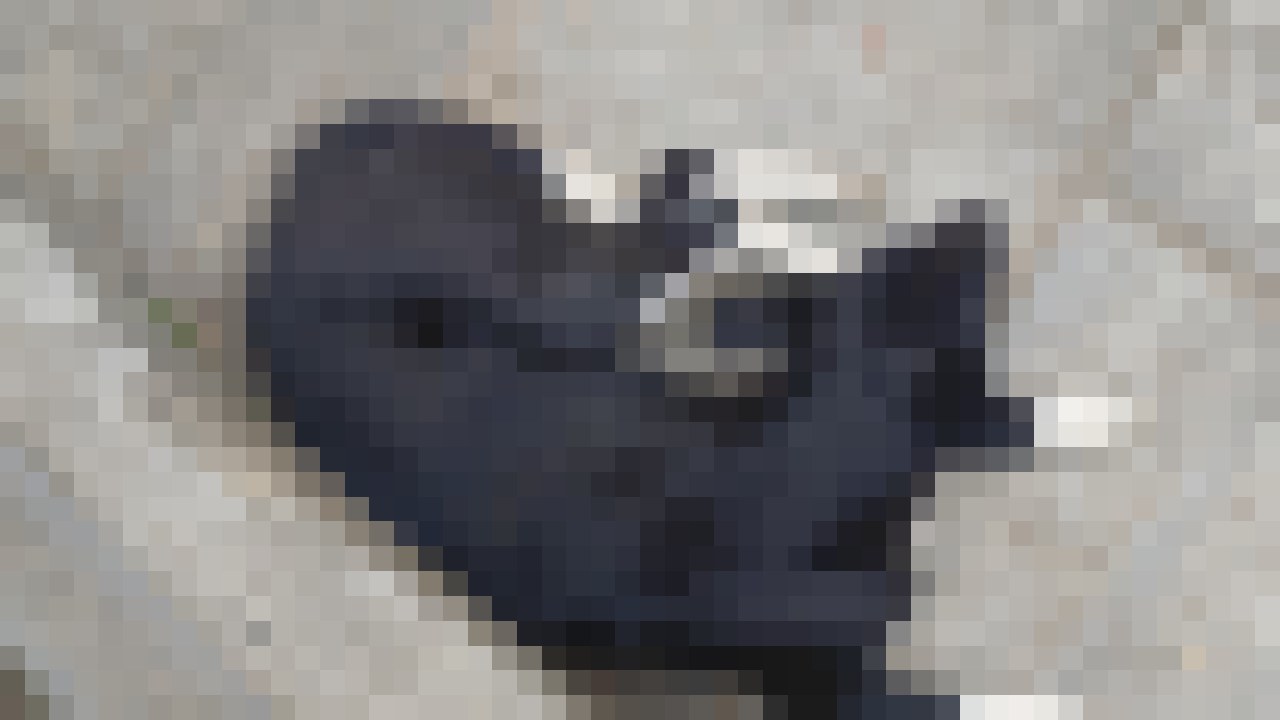
Breaks the image into blocks | Photos, background material |
kaleidoscope |
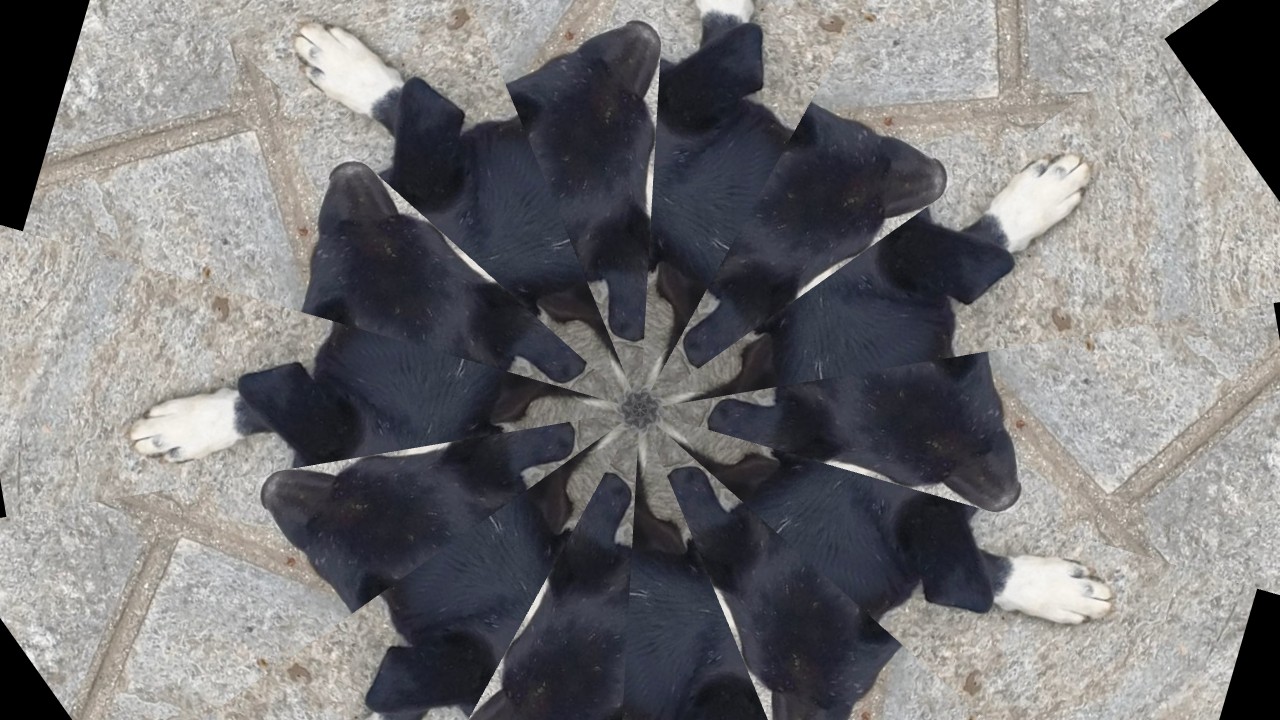
Mirrors the image into a kaleidoscope | Photos, patterns, textures |
slide |
Moves images like a slideshow | Multi-image sets |
zoom |
Pushes the image forward | Logos, strong single images |
split |
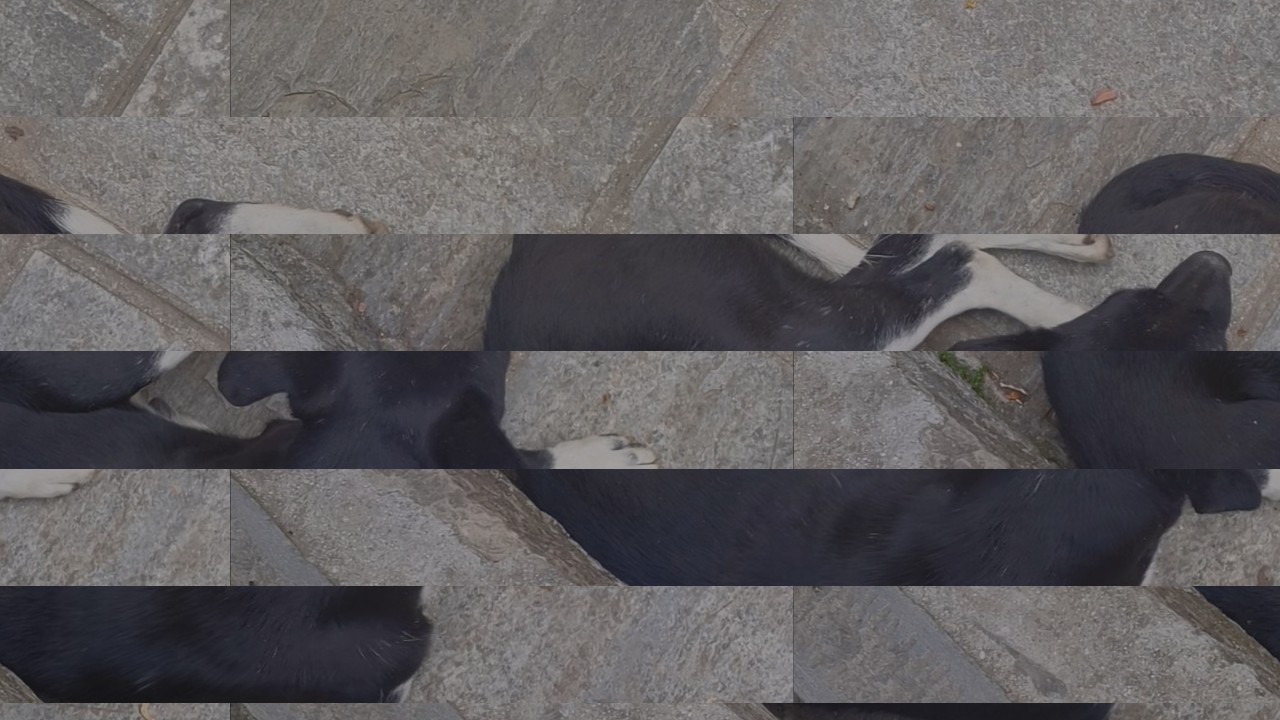
Slices the image into moving parts | Architecture, photos, text images |
👀 Style Samples
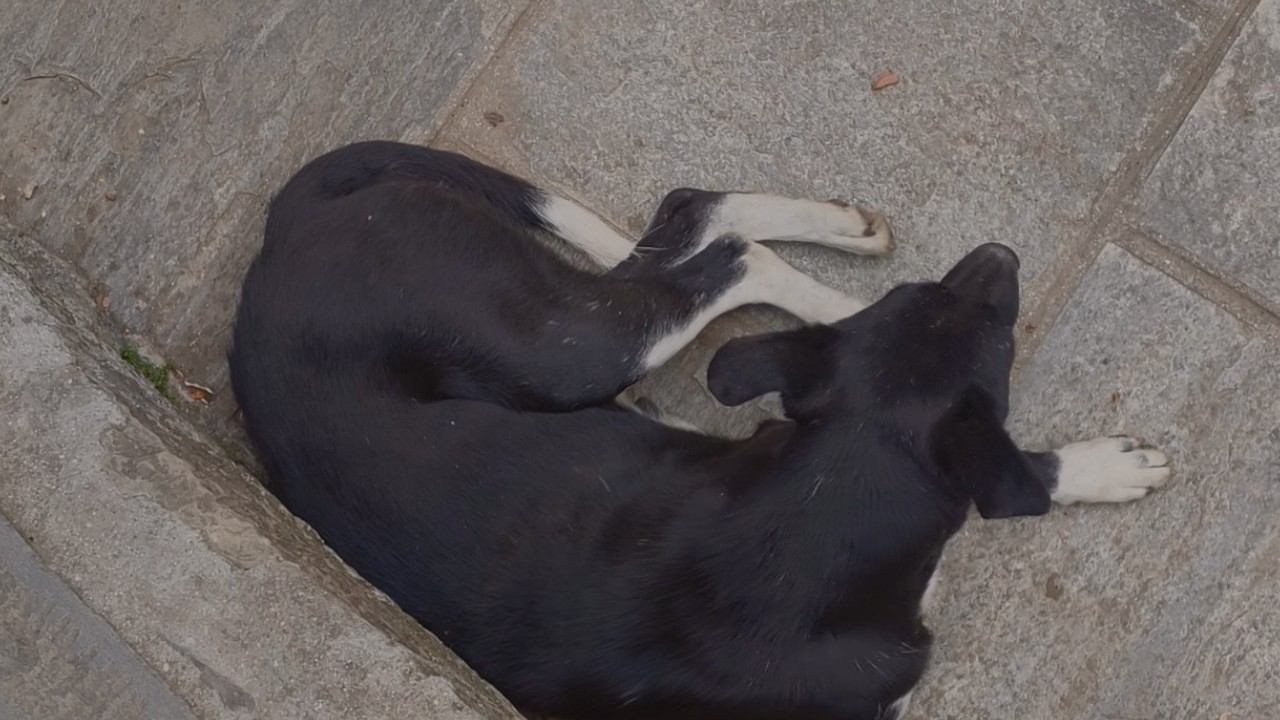
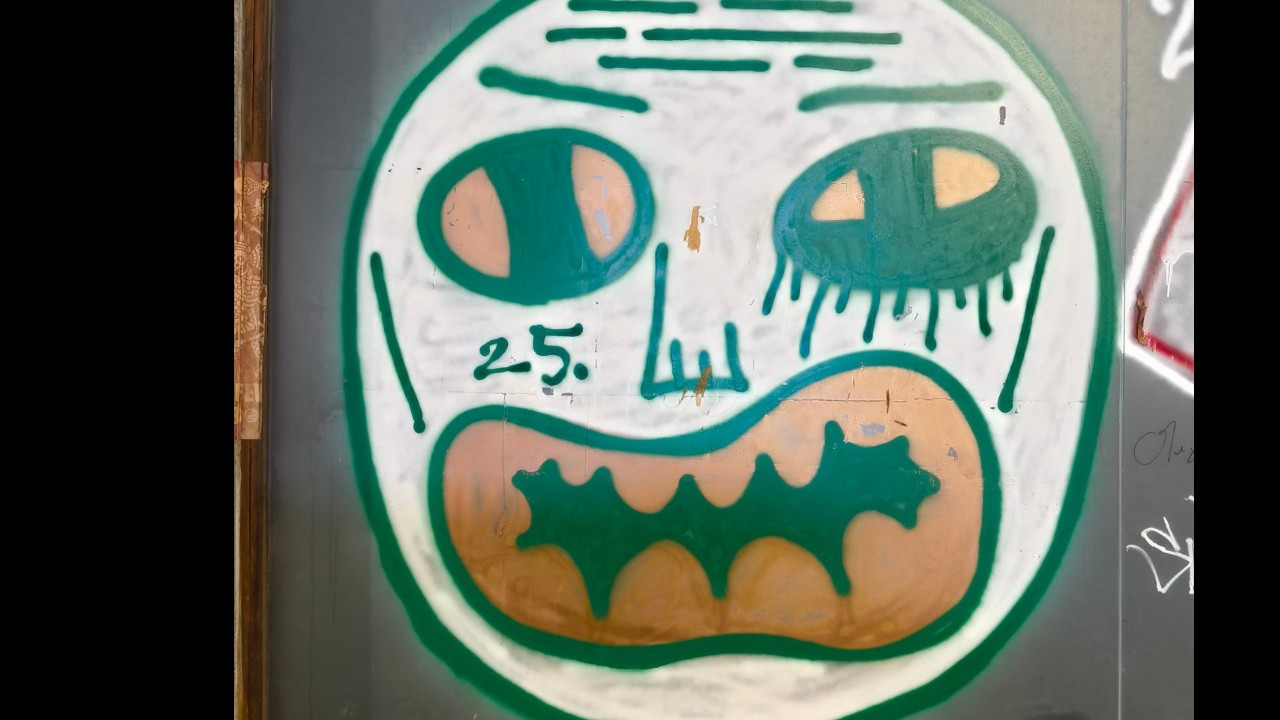
The same images can feel completely different depending on the style. Try these eight first, then tune the one that fits the track.
🎚️ Per-Style Detail Controls
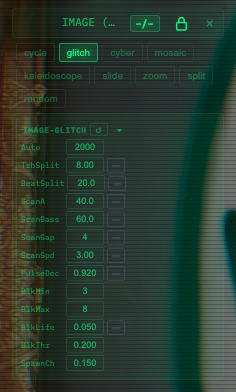
Each style has its own deeper controls. Open -/= on the layer to tune speed, intensity, beat reaction, split counts, zoom amount, and other parameters.
| Style | Extra controls you can tune |
|---|---|
cycle |
⏱️ switch interval, fade time, bass zoom, brightness reaction |
glitch |
⚡ RGB split, block breakup, scanlines, beat intensity |
cyber |
🧪 glow strength, color split, scan speed, bass-reactive glow |
mosaic |
🧱 block size, decay speed, how long the original image stays visible |
kaleidoscope |
🌀 segment count, rotation speed, beat jump, zoom pulse |
slide |
➡️ movement speed, slice count, horizontal/vertical direction, rotation |
zoom |
🔍 min/max zoom, zoom duration, pan spread |
split |
🧩 grid size, gap amount, panel zoom, return speed |
A simple workflow: choose a style, decide whether random should be on, then tweak the detailed controls. Keep logos and QR codes subtle; push photos harder when you want them to become visual texture.
Deck Controls
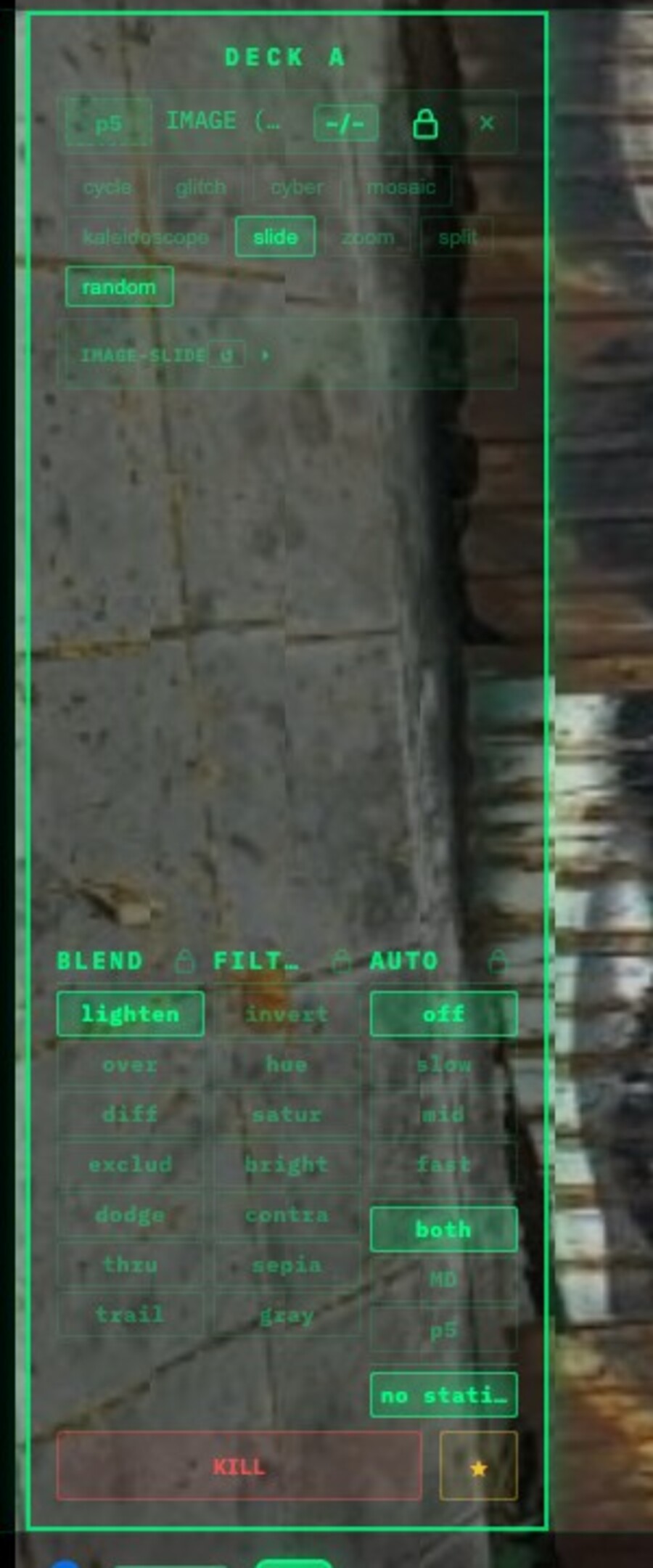
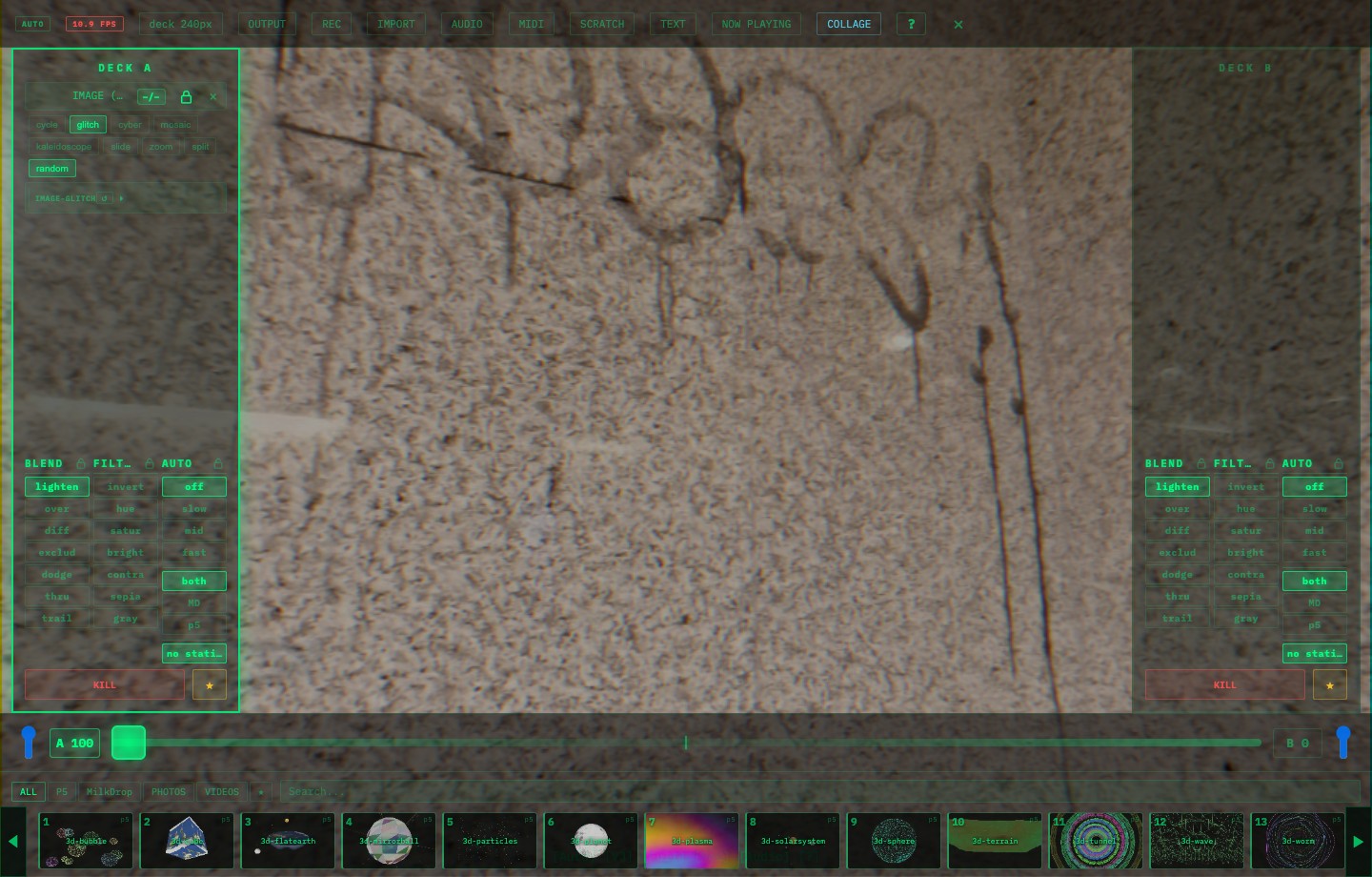
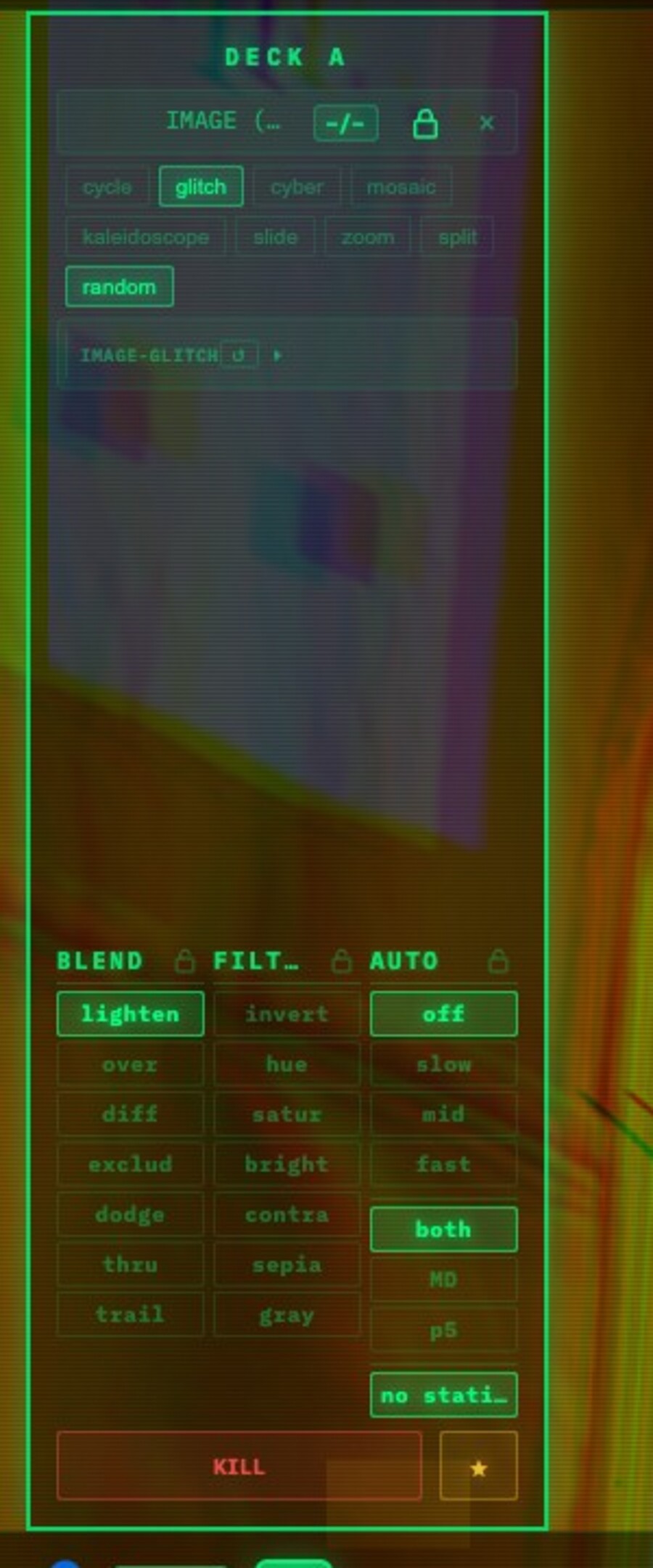
These are the controls on the IMAGE layer.
| Control | What it does |
|---|---|
IMAGE (...) |
The loaded image layer and its current state |
-/= |
Expands or collapses the parameter row |
| 🔒 | Lock. When on, the image survives Kill |
× |
Delete the image layer |
cycle–split |
Choose the image processing style |
random |
Auto-switch image styles |
IMAGE-... label |
Shows the active image style |
BLEND |
How this image layer blends with other layers |
FILTER |
Deck-level color processing |
AUTO |
Deck auto switching. Lock the image if it should stay visible |
random
Turn random on when you want VJam to switch image styles automatically. This is useful when you want a photo set to keep changing while you focus on decks, presets, or audio.
Use random for long background motion, hands-off photo material, and loose improvisation. Turn it off for logos, QR codes, readable announcements, or a fixed art direction.
Multiple Images
Multiple loaded images become one image set. cycle and slide move through the set. glitch, mosaic, and kaleidoscope use the images as visual source material.
Useful patterns:
- One logo:
cycle, random off, locked - Photo set: random on,
glitch/mosaic/kaleidoscope - Announcements:
slide, random off - Background textures: random on, blend with
lighten/difference
Lock And Delete
Image layers are locked automatically when added. This prevents a logo or announcement image from disappearing when you Kill or switch presets.
| Control | Result |
|---|---|
| 🔒 on | Image layer survives Kill |
| 🔒 off | Image can be Killed or deleted |
| × | Delete the image layer |
| Style chip | Change processing while keeping the image set |
Image vs Collage
Images process one loaded image set as a single layer. If you want to place multiple images separately on screen, use Collage.
🔗 Related
- Place multiple assets independently → 🧩 Collage
- Blend images with presets → 🌈 Blend & filters
- Keep or clear image layers → 🎨 Presets
- Put announcements or QR codes in a stream → 📡 Streaming
- Save image-based states → ⭐ Scenes & FAV