
📺 Projector / external monitor
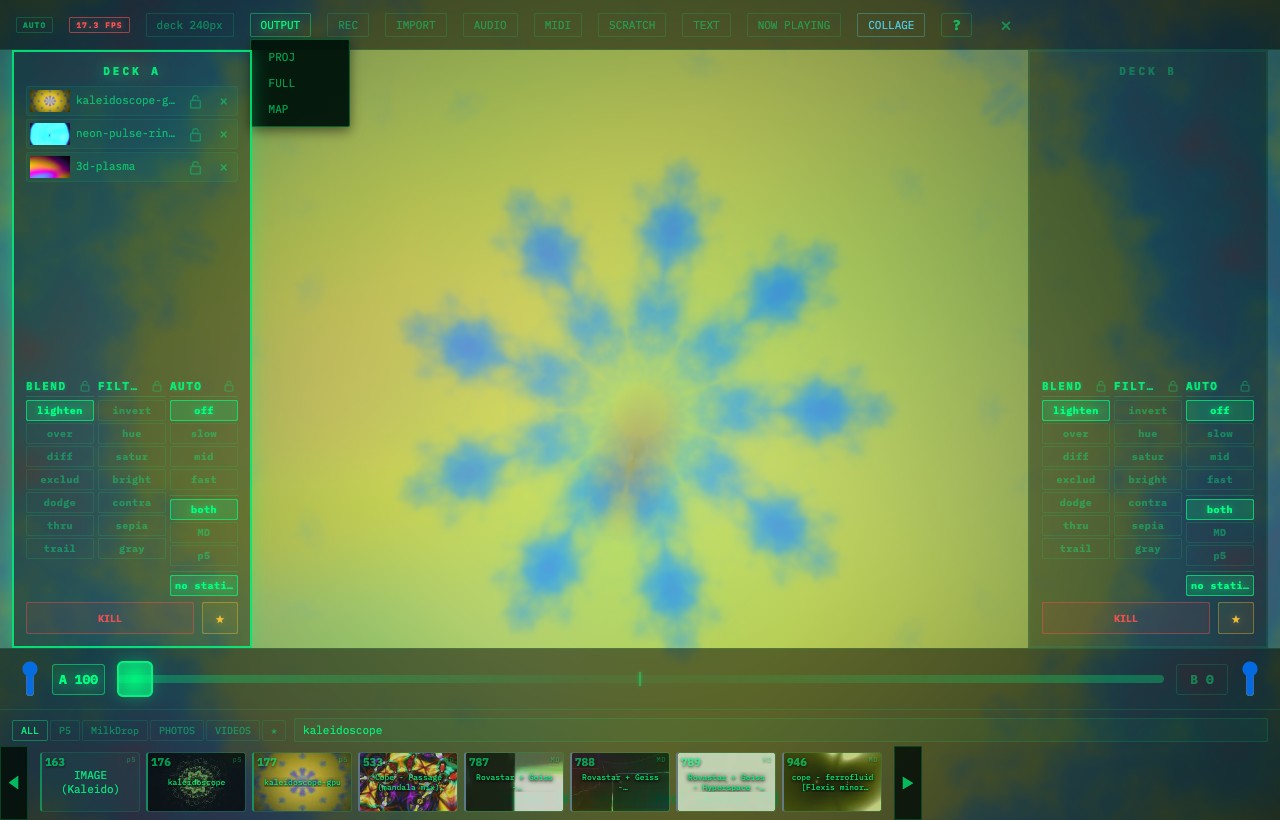
For a live show or event where you want to operate on your laptop but send the visuals to a projector / big monitor 📺 VJam's [PROJ] (a visuals-only window, PC only) is the tool.
🖥️ PROJ = a visuals-only window
- In Cockpit (your control screen), [PROJ] opens a visuals-only window (no UI shows)
- Blend and filters carry over too
- 💡 Opening PROJ keeps your control screen as-is — it just splits into two windows
🎯 Two-screen setup (the main way)
- Connect the external monitor / projector by cable
- Set your OS display to "extend" (not mirror — explained next)
- Open the PROJ window with [PROJ] in VJam
- Drag that PROJ window onto the external screen → double-click inside the window to make it fullscreen
- Control on your laptop, visuals-only on the external 👉 the audience never sees you operating 🎛️
🔀 "Mirror" vs "Extend" (this matters)
- Mirror (duplicate): both screens show the same thing (UI included, on both)
- Extend: the two screens work separately (control on your laptop / visuals-only on the external) 👈 this is the one for VJing
- Set it in your OS display settings (the spot differs on Windows / Mac)
📺 Just want it on one screen?
- If you only need visuals on the other screen, fullscreen the main screen with [FULL] / F key + mirroring — it'll show
- Note: [FULL] / F is fullscreen for the main screen (separate from the PROJ window)
⚠️ If it won't show / notes
- PROJ and external output are PC only (not mobile)
- Can't drag the window to the external monitor 👉 check the cable / that your OS sees the monitor
- In the PROJ window, double-click the visuals to toggle fullscreen on / off
- 💡 Always test that visuals show on the external screen before the show
🔗 Related
- Control A/B from the main screen → 🎱 Deck A/B
- Capture PROJ in OBS → 📡 Streaming
- Use hardware faders → 🎹 MIDI
- What mobile can and cannot do → 📱 Mobile
- Pre-show output checks → ✅ Pre-show checklist