
🚀 Getting Started
From opening VJam to getting visuals reacting to your music — the whole thing takes under 5 minutes ✨
1. 🎬 Launch
- Open VJam in your browser 👉 https://vjam.art
- You'll see a dark start screen — click the screen (on PC, Space works too 👆) to start!
💡 Why the click? Browsers won't play sound until the user interacts (so audio doesn't blast unexpectedly). That first click turns sound on.
Now the visuals (presets) start moving 🎶
2. 🎤 Allow the microphone
VJam is an instrument that reacts to incoming sound. No fiddly setup — when it asks for mic permission, just allow it 🎤
That's it: the mic picks up the sound around you — music, voices, claps — and the visuals start reacting in real time. To check it's coming through, go somewhere quiet and talk toward the screen; saying "aaah" or "check" is the quickest test 🗣️
💡 Want to play your own track (an audio file) or try it somewhere silent (demo)? Those input methods — and how to fix "it's not reacting!" — are all in the 🔊 Audio input chapter 🎧
3. 🎨 Switch the visuals
Once it's running, you can do a lot with just these — no panels needed 👇
| What you want | PC ⌨️ | Mobile 📱 |
|---|---|---|
| Next preset | → |
swipe right 👉 |
| Stack a preset | click the screen | tap 👆 |
| Clear all (Kill) | ← |
swipe left 👈 |
| Change blend | ↑ |
swipe up ☝️ |
| Change filter | ↓ |
swipe down 👇 |
The key thing: each tap stacks another preset as a layer 🍰 They blend together and build up depth. If it gets messy, Kill (←) wipes it clean so you can start over.
4. 🎛️ Open the Cockpit (mixer)
When you want to mix more seriously, open the Cockpit 👇
- How to open 👉 PC = Space / Mobile = pinch 🤏
- How to close 👉 the × at the top right (or Space / pinch again)
- It has Deck A / B + a crossfader, so you can mix and switch two visuals like a DJ 🎚️
- You can also drop in images, collage elements, video, text, and track info, and control parameters with sound from here ✨
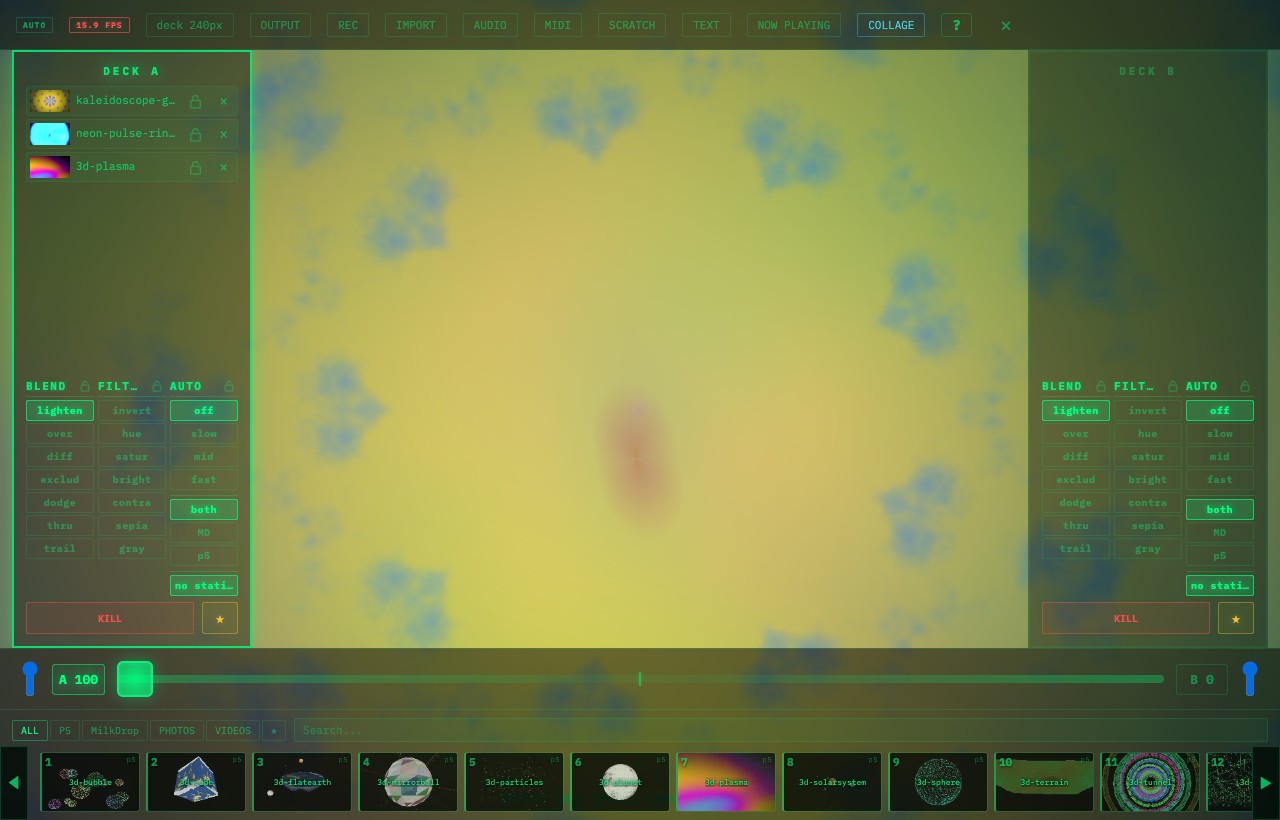
→ More in the "Deck A / B & crossfade" chapter.
🙌 Next steps
- The [?] button in the bottom-right (H key) 👉 a quick animated refresher on the basic moves
- Want every shortcut? 👉 📋 Cheat sheet
- The How-to chapters 👉 recording, images/video, saving scenes — based on what you want to do
- The Concepts chapter 👉 Why two engines? What are "feel" visuals?
The full list of keys & gestures is in the Reference chapter. This one is just your first 5 minutes.
Next: 🛠️ Audio input →