
🎹 MIDI controller
Control VJam with a MIDI controller (physical knobs, faders, pads) instead of mouse and keyboard 🎹 Like running the crossfader on an actual fader.
⚠️ MIDI needs a WebMIDI-capable browser (Chrome / Edge recommended). It won't work on browsers like Safari that don't support it.
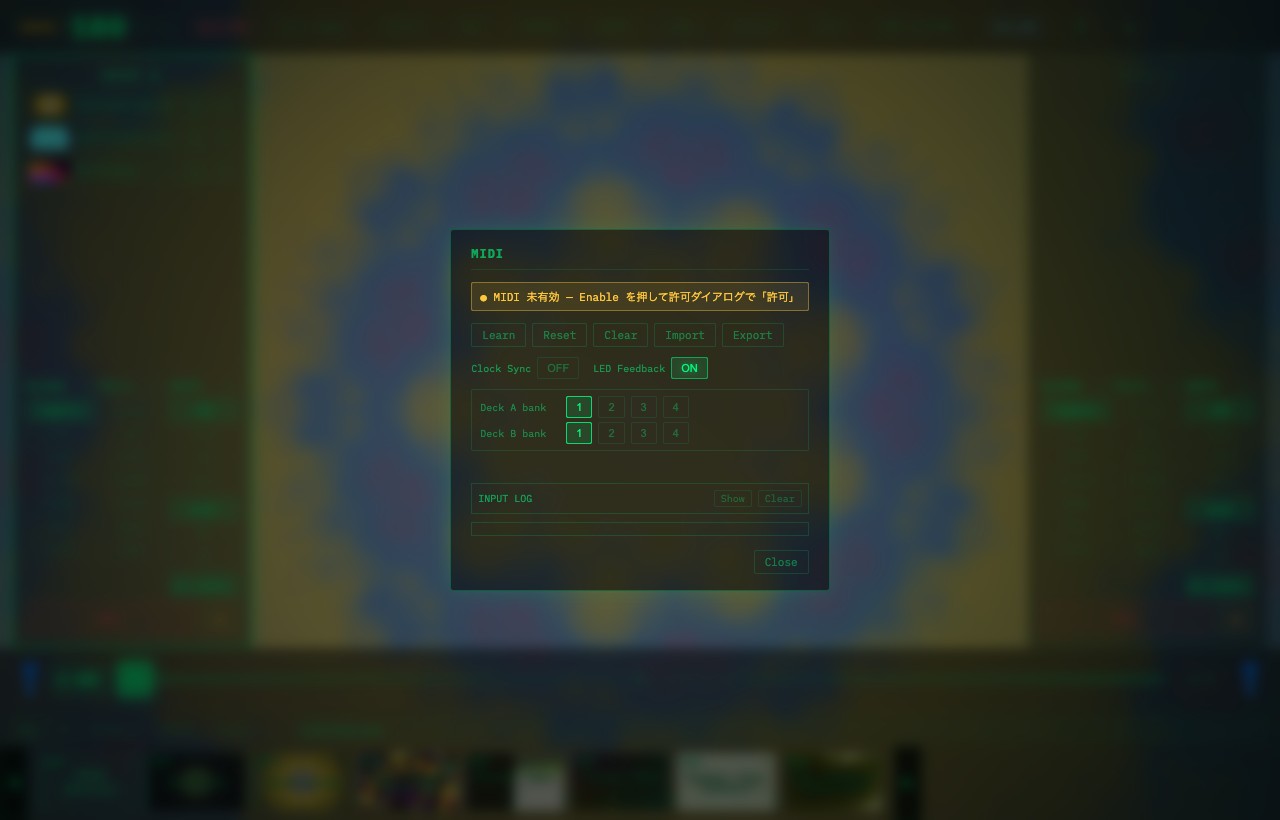
🔌 Connecting
- Plug your MIDI controller into your PC over USB
- Open the MIDI settings panel with the M key
- If the browser asks "Allow MIDI?", allow it
- You're set once the panel shows the connected device name 👍
🎓 Assigning (MIDI learn)
To bind a knob or button to a VJam function 👇
- Click [Learn] in the MIDI panel → the assignable items highlight
- Click the function you want (e.g. the crossfader) → it goes to "Listening…"
- Move a knob / button on the controller → it binds to that move ✅
Repeat to set up your controller. Got one wrong? Just Learn again and bind a different control to the same function to overwrite it.
🎛️ What binds to what
| Function | Best control |
|---|---|
| Crossfader | fader (continuous) |
| Blend / filter | knob |
| Kill / scene switch | pad (button) |
- Faders/knobs suit continuous values (smooth changes) / pads/buttons suit on/off
- Targets are global (crossfader / BPM / Kill / recording) and per-deck (blend / filter / auto / speed)
- There are default mappings for popular controllers too (some just work on plug-in). See the controller charts 🎛️
🆘 Not connecting / not responding
- Check your browser is Chrome / Edge (Safari often doesn't support WebMIDI)
- Reload the page / replug the USB
- Make sure another app (a DAW, etc.) isn't holding the MIDI device (if it is, VJam can't use it)
- Make sure you allowed the MIDI permission popup
🔗 Related
- Hardware controller charts → 🎛️ Controller mappings
- Control Deck A/B with faders → 🎱 Deck A/B
- Pick presets with PLAY / CUE / jogs → 🎨 Presets
- Switch blend and filters with knobs → 🌈 Blend & filters
- Perform video with pads and jogs → 🎬 Video
- Check the setup before a show → ✅ Pre-show checklist