
🔴 Record to MP4
You can record your visuals to MP4 right here 📹 For socials, portfolio, or just keeping it. Whatever you do while recording (switching, effects) is captured too, so you can record a whole live set.
▶️ How to record
- The REC button at the top of the Cockpit or the R key opens the recording menu
- Pick a format and length, then Start 🔴
- To stop 👉 it stops automatically for a set length, or press REC (R key) again for Manual
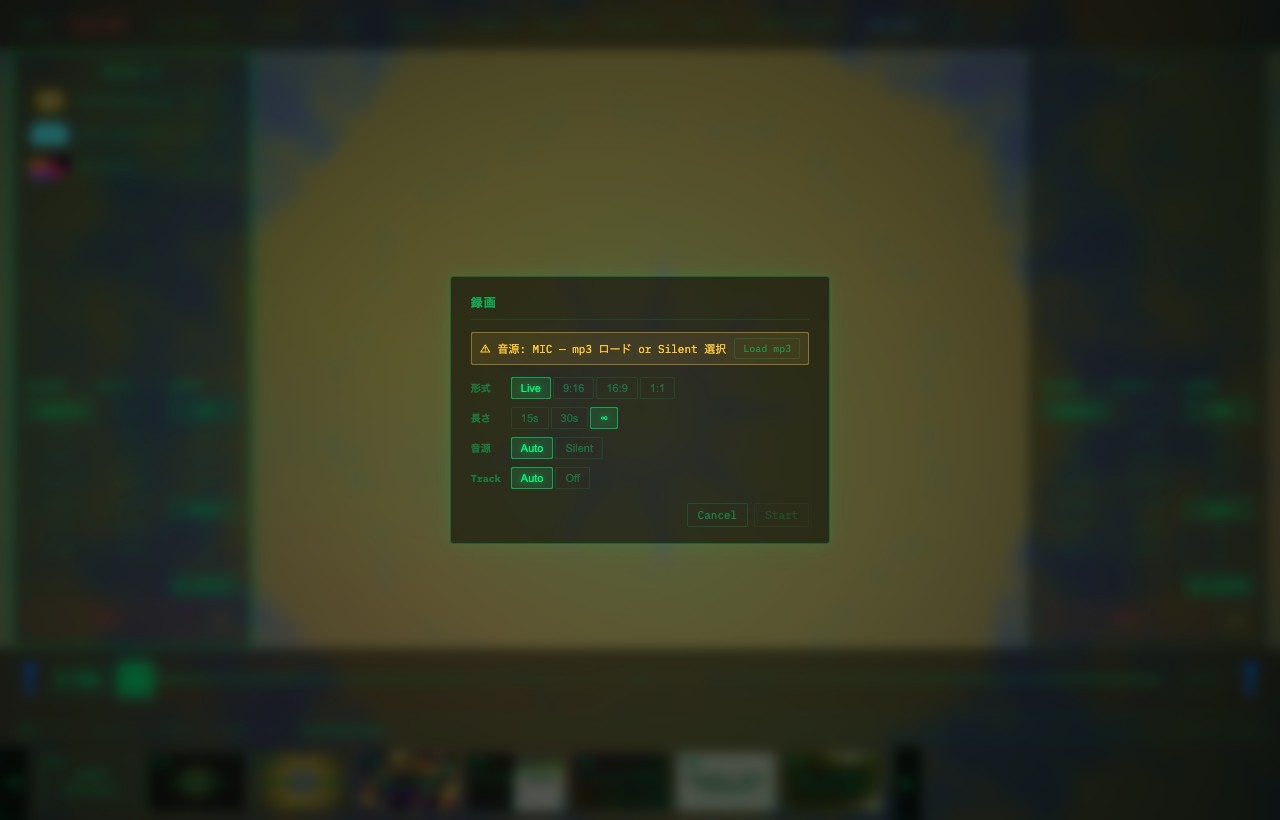
⚙️ Recording settings
| Setting | Options | What it means |
|---|---|---|
| Format | Live / 9:16 / 16:9 / 1:1 | Live = your current screen size. 9:16 = vertical for socials, 16:9 = YouTube, 1:1 = Instagram |
| Length | Manual / 15s / 30s | Manual stops manually (press REC again). ⚠️ Long recordings make big files (especially on mobile) |
| Source | Audio / Share / Silent | Audio = loaded audio file / Share = shared tab or system audio / Silent = no audio |
| Track | Auto / Off | Include the track-info overlay (title, etc.) in the recording, or not |
🎵 Record with audio
There are two ways to record with sound.
- Audio: best for finished work. Load an audio file first (→ 🔊 Audio input). Recording starts from the top of the track
- Share: best for quick capture. When recording starts, choose the tab/window/screen that is playing sound and enable audio sharing
- Silent: record without sound
Share is mainly for desktop browsers. Mobile browsers have stricter limits around shared screen audio, so use Audio when you need reliable sound.
💾 Saving
- PC 👉 downloads automatically when done (into your browser's download folder)
- Mobile 👉 tap the "save" link that appears. ⚠️ Save it before you close the link
🎬 About the format
Under the hood it's a proper MP4 made with WebCodecs + mp4-muxer (fastStart), not MediaRecorder. Plays nicely with most editors and socials 👍
🔗 Related
- Prepare audio for recording → 🔊 Audio input
- Add track info captions → 🎵 Track info
- Add social text overlays → 💬 Text
- Send live output instead of recording → 📡 Streaming
- Check before recording → ✅ Pre-show checklist