
🎬 Video
Video loads short loops or footage into a VJam deck so it can be layered with presets and images. Use it for background loops, dance footage, motion graphics, or clips from your own performances.
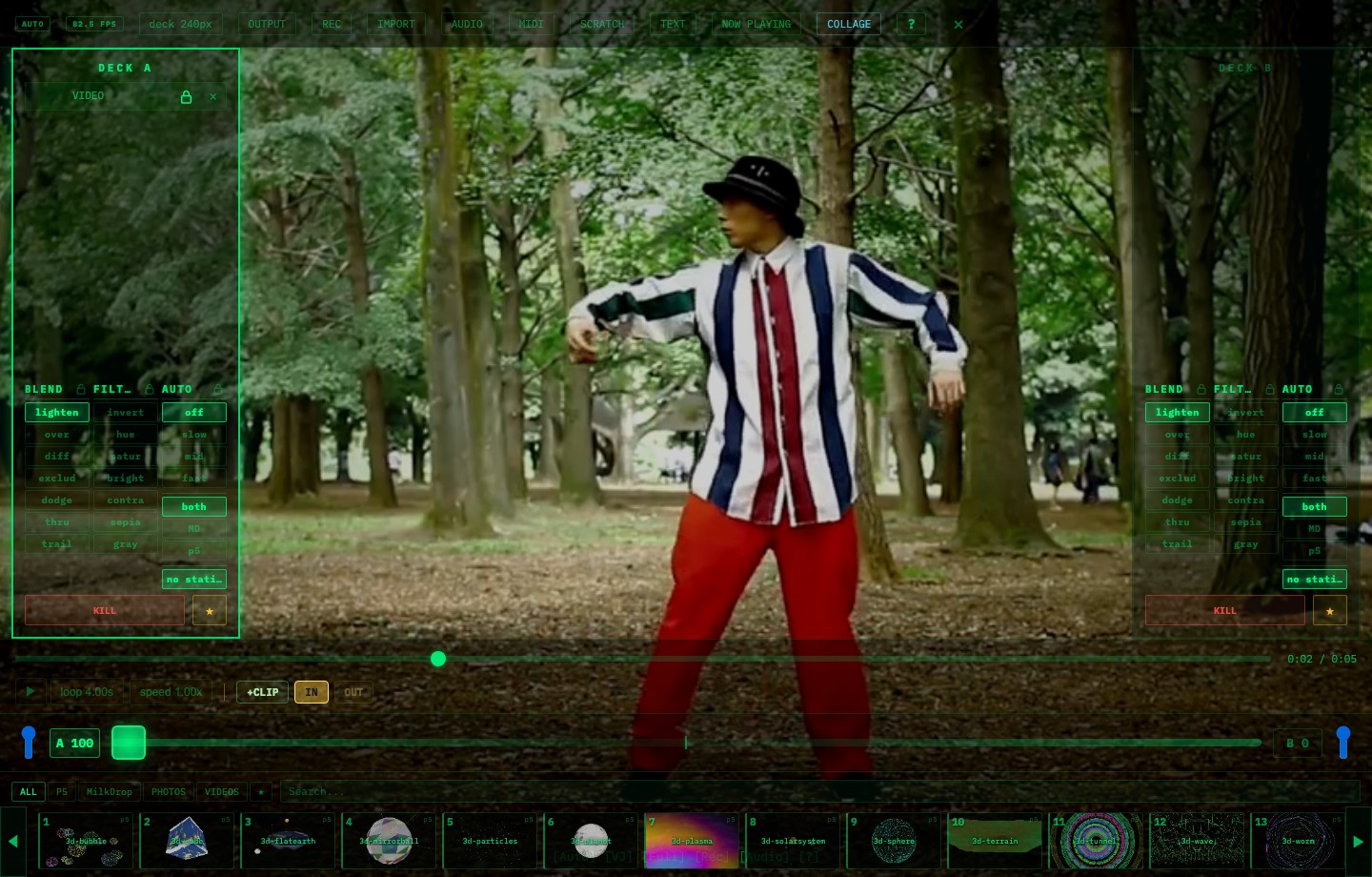
Processed Examples
Video is not just a file player. It is a deck layer, so you can stack it with p5 presets, filters, text, and images.
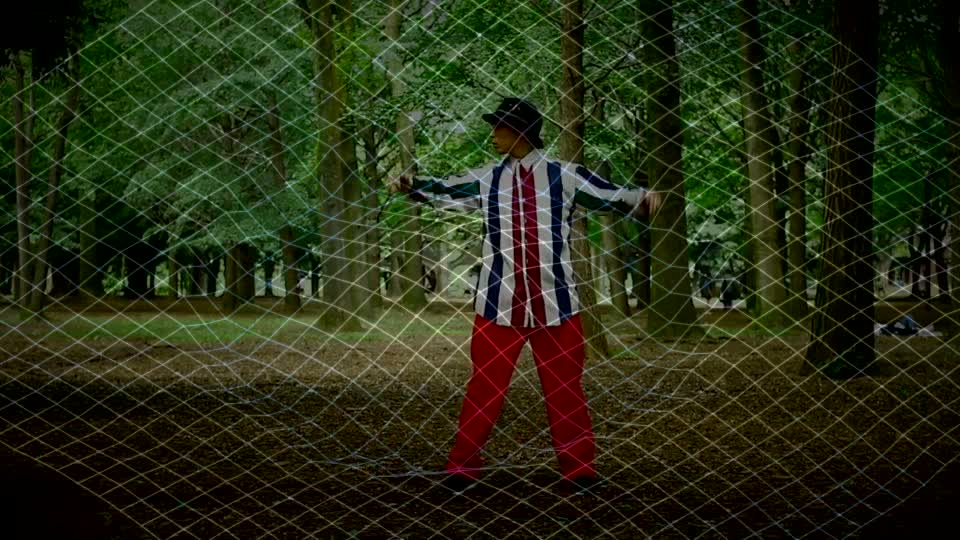
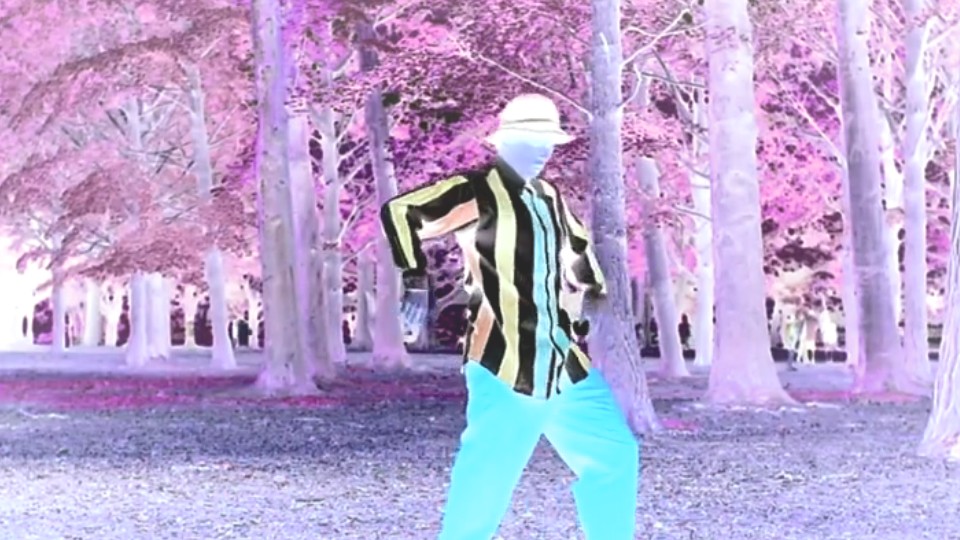
- p5 preset + video: layer lines, particles, and patterns over live-action motion.
FILTER: useinvert,hue,saturate,contrast, and more.difference/exclusion: useful when you want footage and presets to visibly interact.- Deck A/B: put video on one deck, presets on the other, then crossfade.
Features
| Feature | Details |
|---|---|
| Files | MP4 and other browser-playable video files |
| Layering | Stack video with presets and images |
| Playback | Play / pause and seek |
| Speed | Change playback speed |
| Loop | Automatic single-video looping plus live loop ranges |
| Scratch | Use SCRATCH / MIDI jog controls to scrub the video |
| CLIP / VIDEOS | Save points or IN / OUT regions and recall them |
On desktop, dropping a single video file onto VJam loads it to the current deck. Dropping multiple videos registers them for the VIDEOS tab.
Quick Map
The video controls look similar at first. This is the short version:
| Control | What it does | Saved? |
|---|---|---|
loop |
Repeats a short range from the current playhead | No. It is a live improvisation loop |
speed |
Speeds up or slows down current playback | No. It affects current playback |
+CLIP |
Creates a card that jumps back to the current time | Saves the time only. It does not loop |
IN → OUT |
Saves a loopable range as a card | Saves IN time, OUT time, and beat count |
| Beat chip | Fits region clip speed to the music | Saved. You can adjust it later |
Use loop and speed for live moments. Use +CLIP / IN / OUT when you want a hit you can recall later.
Loop
A single loaded video loops back to the beginning when it reaches the end. For background clips, this is often enough.
The loop chip creates an improvised live loop from the current playhead position. Drag the chip vertically to change the loop length. If you want to keep a range for later, save it as a region clip with IN / OUT.

- Tap
loopto turn the improvised loop on / off. - Drag
loop 4.00svertically to change the live loop length. - Move the seek bar to find the moment you want.
- Trigger an
IN/OUTclip to switch the loop chip intoregionmode and loop the saved range.
Speed
The speed chip changes playback rate. Drag to slow the clip down or push it faster; tap the chip to reset to 1.00x.
Manual speed changes affect the current playback. They are not saved into an IN / OUT clip as a fixed value like speed 0.50x. When a region clip is recalled, VJam uses the saved range and beat count to calculate the playback speed for the current BPM.

- Drag
speedvertically to change playback rate. - Tap
speedto return to1.00x. - Manual speed is for the current performance.
- Region clip speed is derived from the saved beat count and current BPM.
- Changing loop length or toggling
loopwhile a region is active switches back to a normal live loop.
Scratch
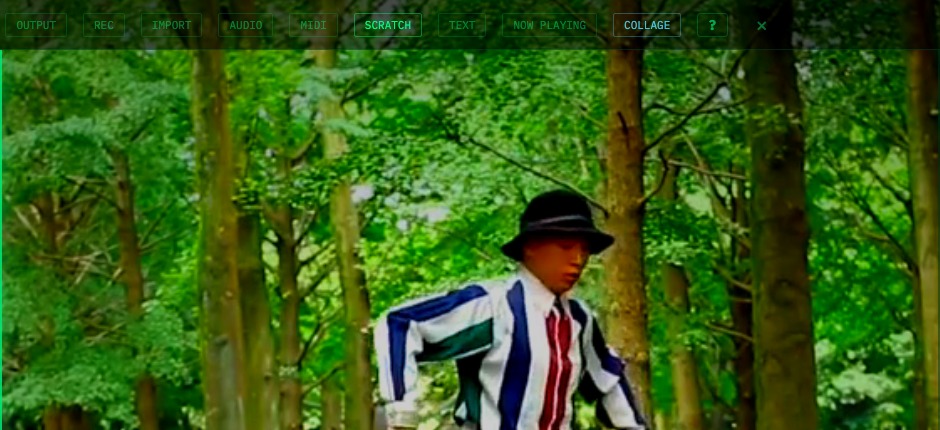
With SCRATCH enabled, jog / MIDI controls scrub the video back and forth. Turn it off when you want jog movement to browse instead of scratch.
CLIP / VIDEOS
Use clips when you want to come back to the good parts of a video quickly. A long video is hard to perform with; saved points and regions make it playable.

Save a point: +CLIP
+CLIP saves the current playhead position as a jump target. It does not loop; it just lets you return to that exact moment.
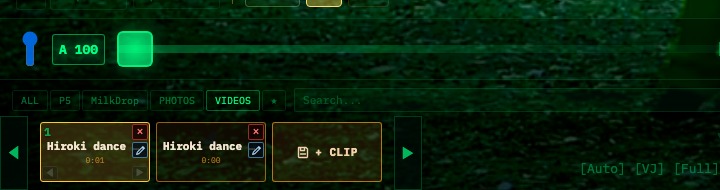
Save a region: IN → OUT
Press IN at the start of the useful motion, let the video move, then press OUT at the end. While IN is pending, the range preview appears on the progress bar.
Saving a region stores three main things:
- the
INtime: where the region starts - the
OUTtime: where the region ends - the beat count: how many beats the region should occupy
Manual loop 1.25s and speed 0.50x values are not stored as-is. Think of the loop chip as a live improvisation tool, and IN / OUT as the way to save a loopable region.

Recall it live
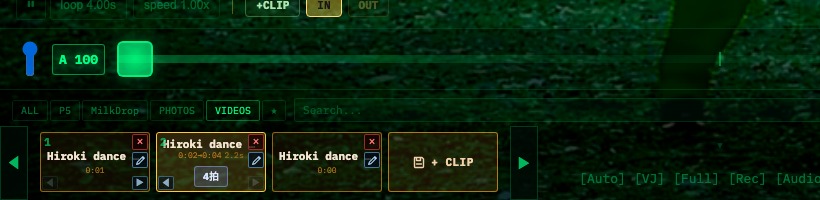
Point clips jump to the saved time. Region clips jump to the start and loop the saved IN → OUT range. The beat chip, such as 4拍, adjusts how the region fits the music.

+CLIP: save one point and jump back to it.IN→OUT: save a loopable region.- Beat chip: drag it to change how many beats the region should fill.
VIDEOScards: recall saved points and regions.- PAD / MIDI: free PAD slots are assigned automatically, so video hits can be performed.
What does “beats” mean?
Here, beats are the timing unit used to fit a video region to music. VJam treats 1 beat = 60 / BPM seconds.
At BPM 120, one beat is 0.5 seconds. If a 2-second region is set to 4拍, it plays around 1.00x. If the same 2-second region is set to 8拍, it needs to stretch across 4 seconds, so it plays around 0.50x.
Use the beat count when you want a cutout to land over 4 beats, stretch over 8 beats, or otherwise sit in the rhythm.
Full-Stacked Loop Example
Here is a short loop showing how far video can be pushed. It starts from the dance clip, then adds scratch-like back-and-forth motion, speed changes, filter-style inversion / hue / saturation / contrast, RGB offset, scan lines, grid texture, and a MilkDrop-style fractal glow layer.
With this much processing, the source footage still reads, but it starts behaving like a visual texture. Try short regions for breaks and drops, then add inversion, color shifts, MilkDrop, and Deck A/B blending.
Material Tips
Short loops are easiest. Long videos are heavier to load, seek, and record. Clips with clear motion read well; clips with bright areas layer nicely with lighten, while live-action footage can get more contrast with difference or exclusion.
🔗 Related
- Stack p5 / MilkDrop over video → 🎨 Presets
- Change video color and blending → 🌈 Blend & filters
- Crossfade video and presets → 🎱 Deck A/B
- Perform video with jogs and pads → 🎹 MIDI / 🎛️ Controller mappings
- Capture the result → 🔴 Recording